
Effortlessly remove video and photo backgrounds, and change your video background with ease.
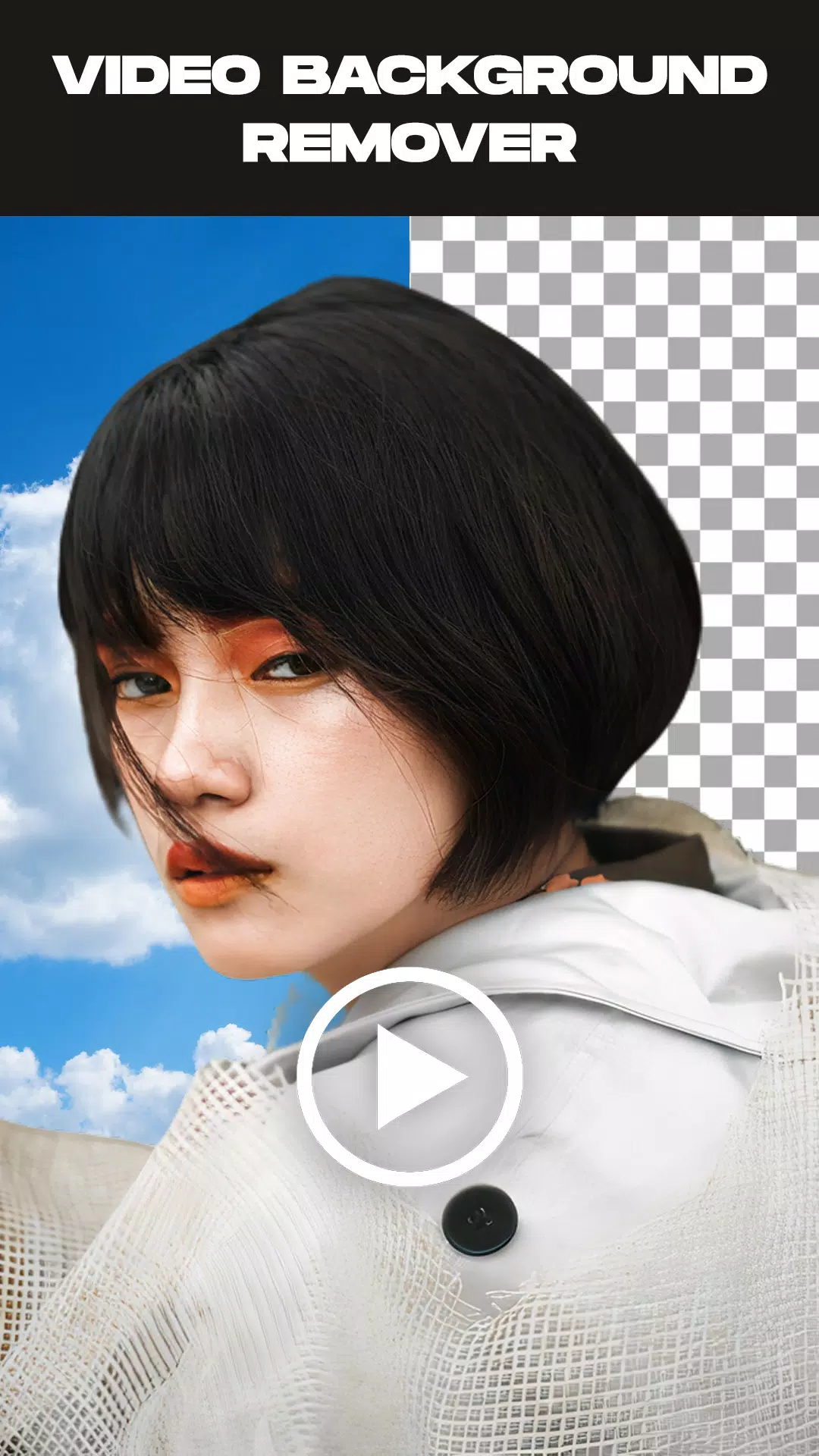
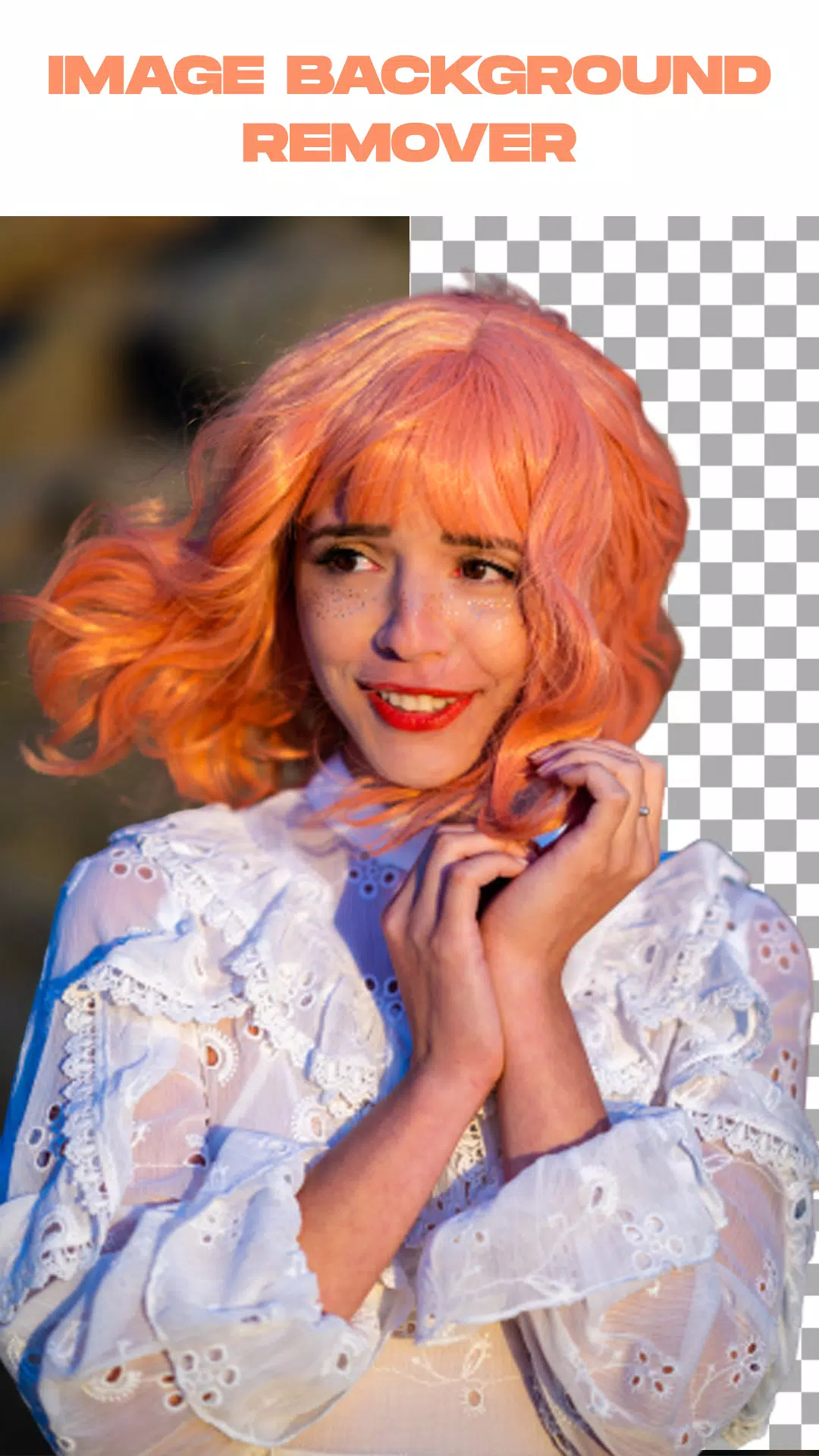
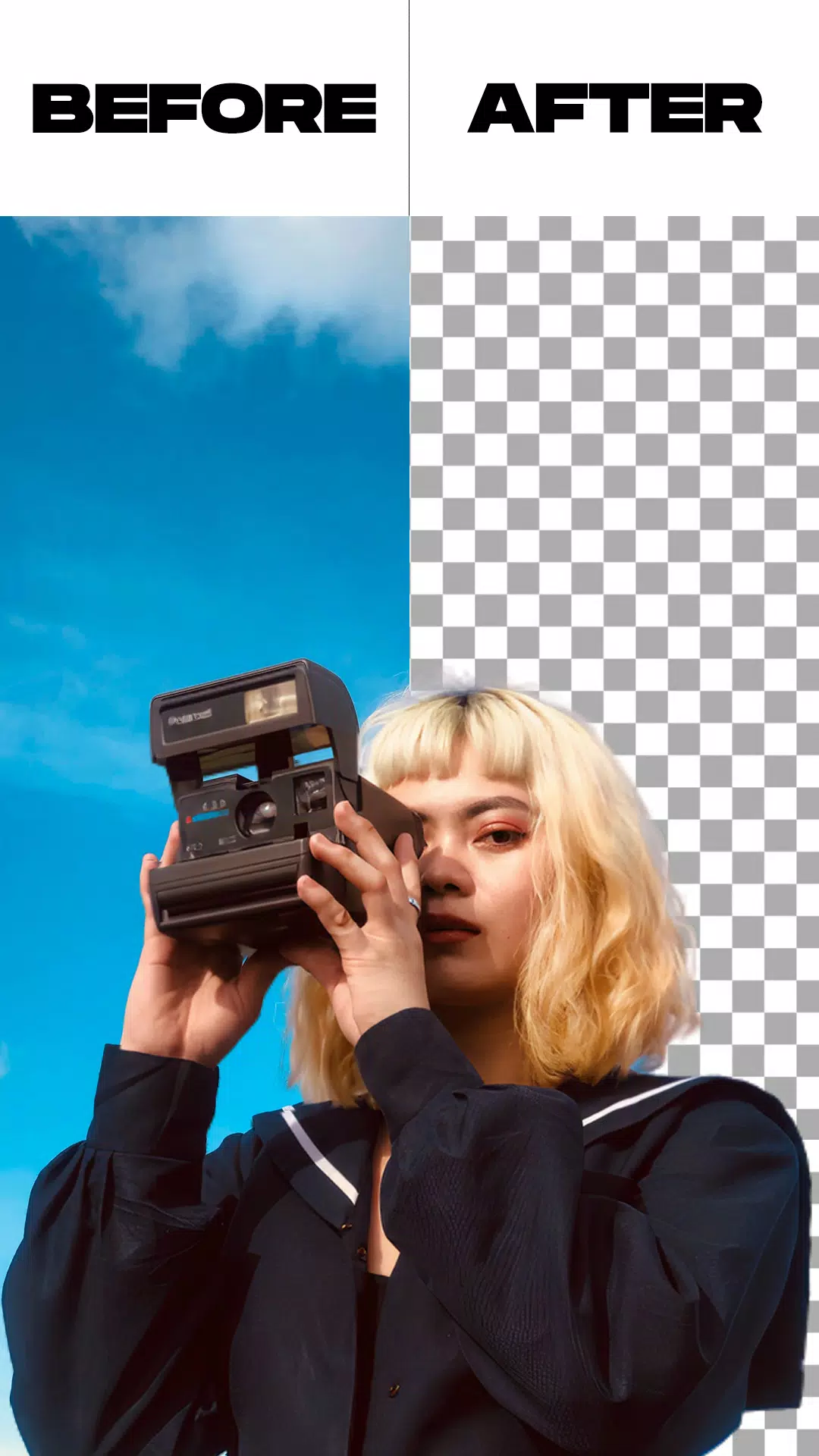
Remove Video Background is the perfect tool for anyone wanting to delete the background from their videos and photos. This app gives you the power to remove the background from your videos and replace it with a new one, whether you're using footage from your camera or gallery. It provides two main options and includes extra features like removing the background from images or swapping green screen backgrounds for ones you love.
Remove Video Background is a free video background changer packed with features, including the ability to change your video background to a solid color. With thousands of colors and gradient options to choose from, simply pick your favorite and transform your camera video's background instantly.
Beyond colors and gradients, this app also lets you set a new video background using an image from your gallery or even another video. Change your scene with just one tap.
The green screen effect works with both camera modes—selfie and rear camera. Switch between them with a single tap to change the background for your video selfies as well as videos shot with the back camera.
Green screens are a favorite among content creators who want to make their videos more dynamic and entertaining. But what is a green screen? It's a filter that provides a variety of background options to use in videos shared on social networks.
This feature mimics the green backgrounds used in superhero movies as a setting for actors. While it's a hugely popular online tool, the question is, do you know how to use it?
Features:
Remove the background from an image with two options: automatic background removal or manual background removal.
Trim your video before you start removing its background.
Remove the background from a live camera video or a video from your gallery.
You can change the green screen background to any background you prefer.
How to Use:
Open the Remove Video Background app.
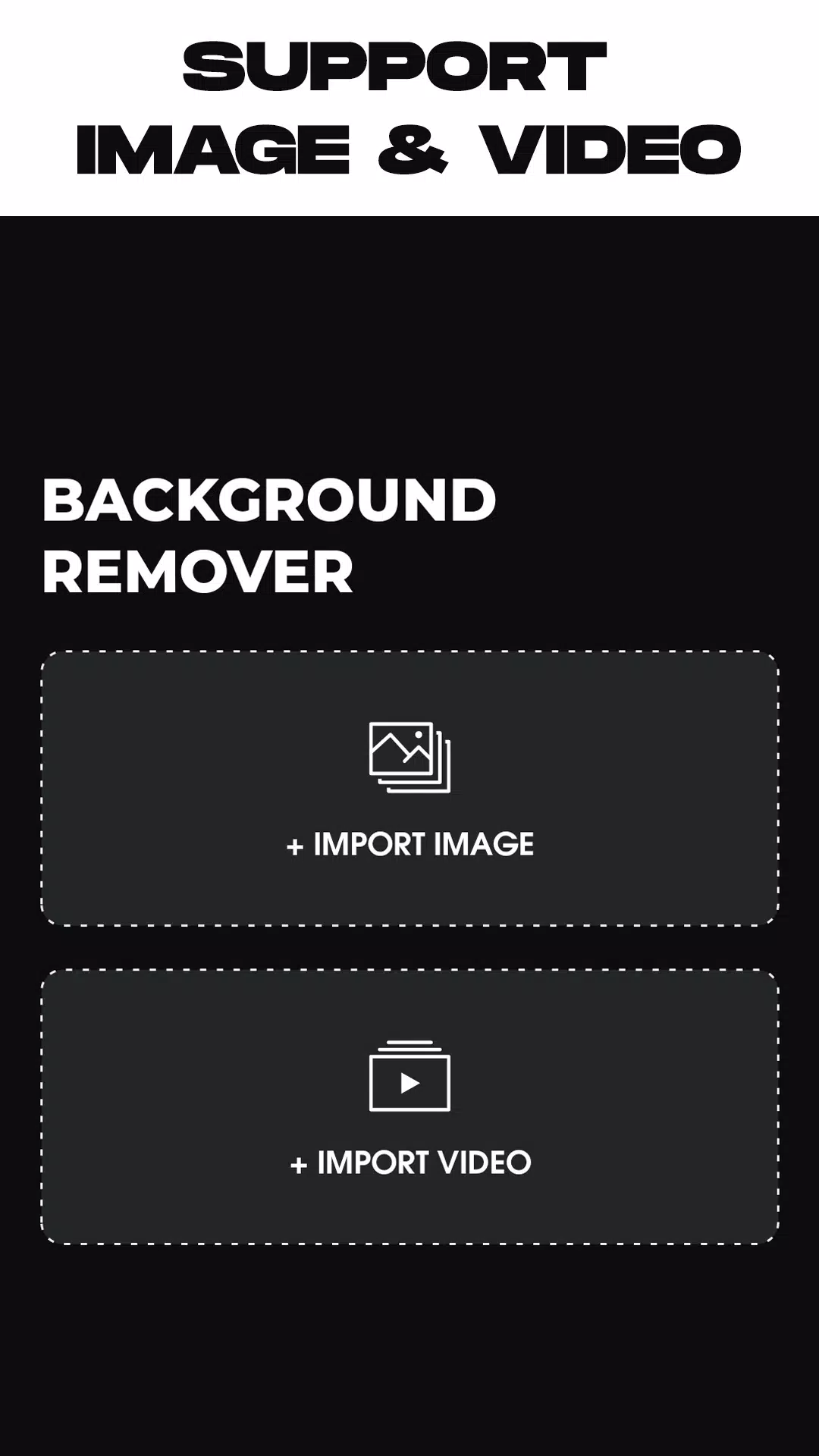
Choose between two options: the first to remove a photo background, the second to remove a video background.
After selecting your media file, the app will automatically begin removing the background. All you need to do is wait for the process to complete.
Once the background is removed, you can change the background of your video or photo. Select from the app's built-in backgrounds or choose one from your gallery—the choice is yours.
When you're finished, just tap the export button. The app will save your final video or photo directly to your gallery.
What's New in the Latest Version 1.5.4
Last updated on May 26, 2024
Minor bug fixes.










![熊本のHairSalon YELLOW[ヘアサロンイエロー]](https://imgs.dgmma.com/uploads/78/173155007867355b7e469e0.webp)