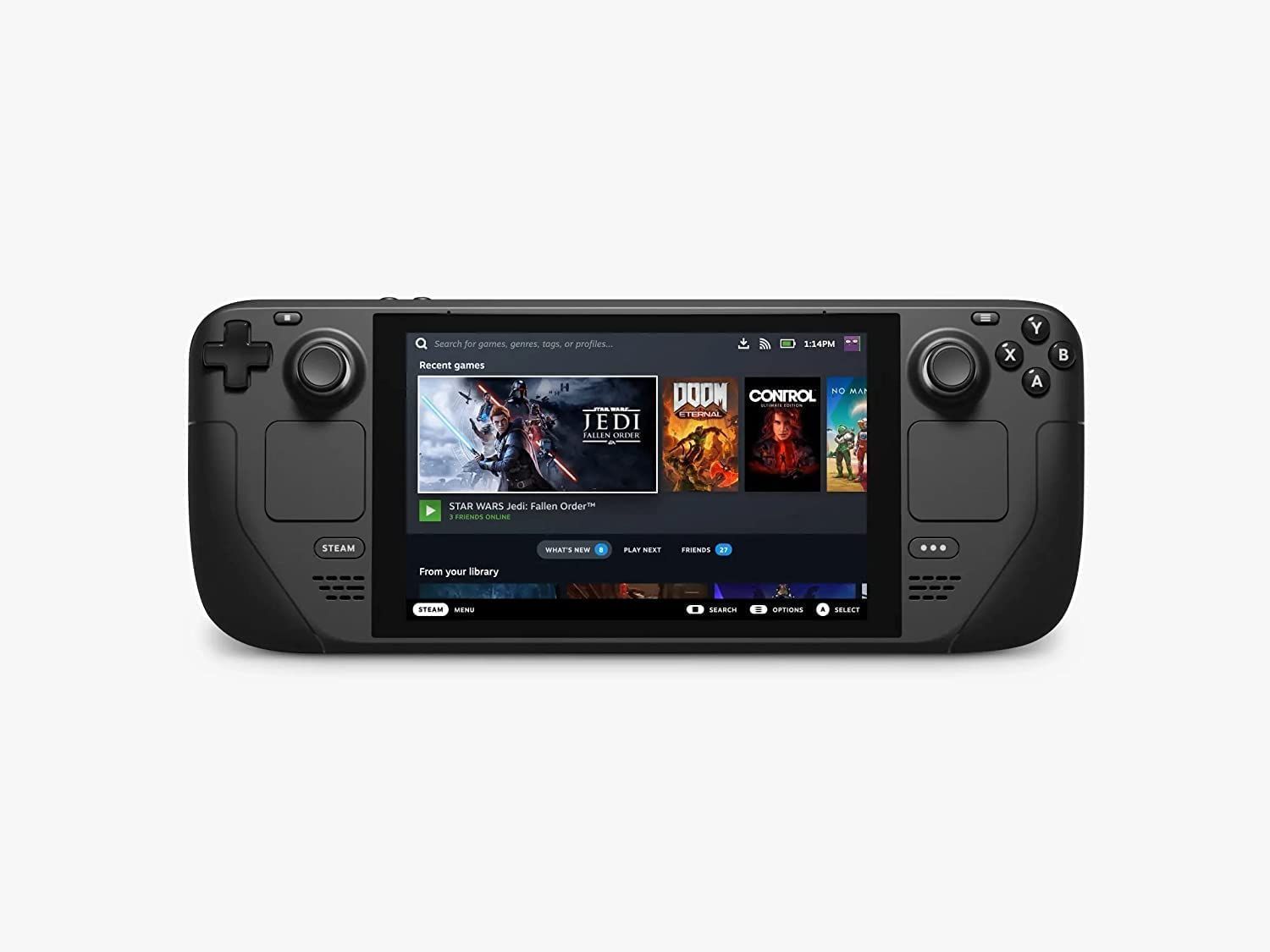
This guide details installing EmuDeck on your Steam Deck to play Sega Game Gear games. It covers pre-installation steps, EmuDeck installation, ROM transfer using Steam ROM Manager, fixing artwork issues, optimizing game performance, installing Decky Loader and Power Tools, and troubleshooting after Steam Deck updates.
Quick Links
- Before Installing EmuDeck
- Installing EmuDeck on the Steam Deck
- Transferring Game Gear ROMs and Using Steam ROM Manager
- Resolving Missing Artwork in EmuDeck
- Playing Game Gear Games on the Steam Deck
- Installing Decky Loader on the Steam Deck
- Installing the Power Tools Plugin
- Troubleshooting Decky Loader After a Steam Deck Update
The Sega Game Gear, a pioneering handheld console, now finds a new home on the Steam Deck thanks to EmuDeck. This guide provides a comprehensive walkthrough. Updated January 8th, 2025.
Before Installing EmuDeck
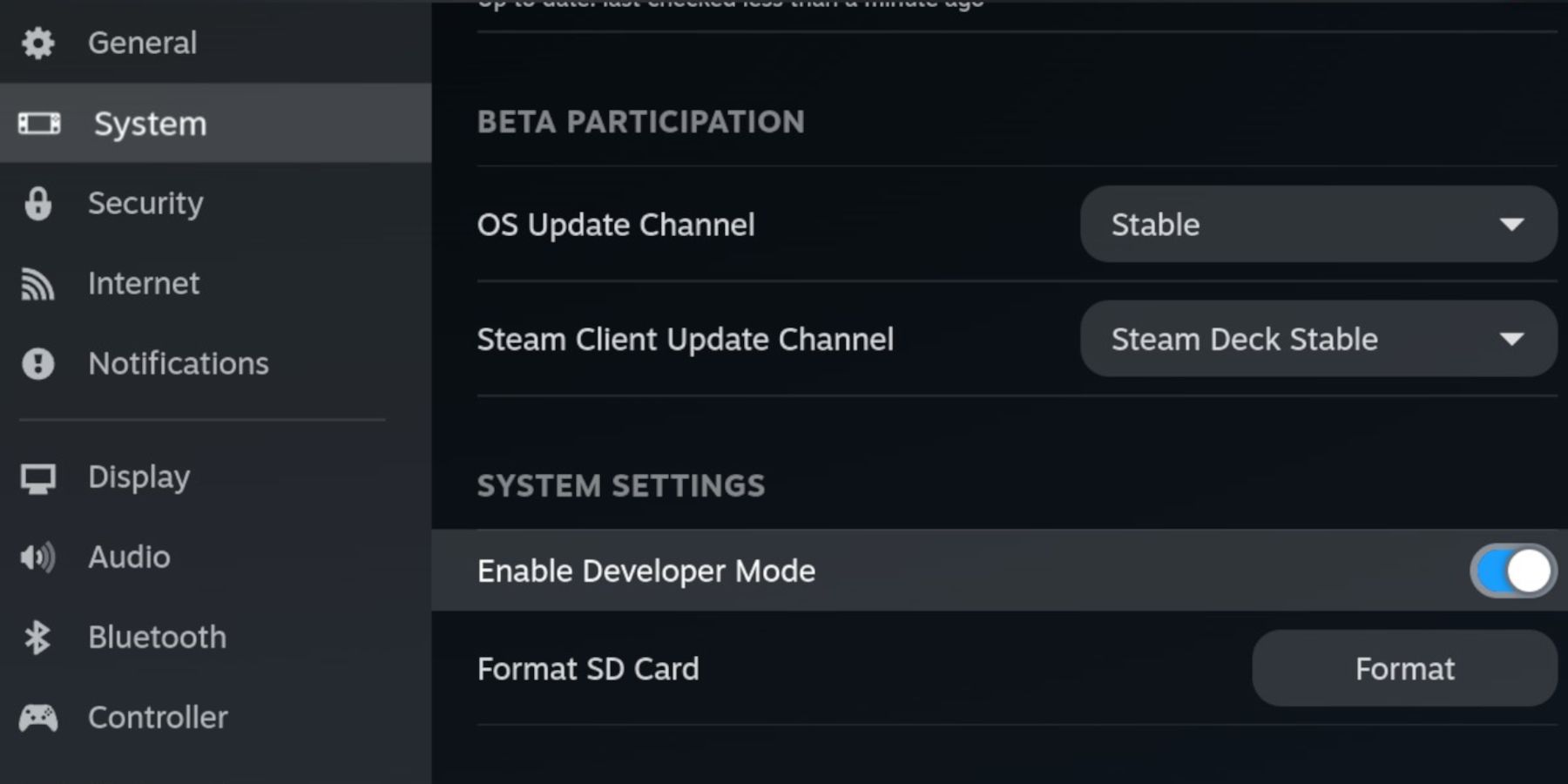
 Prepare your Steam Deck by enabling Developer Mode and gathering necessary tools.
Enabling Developer Mode:
- Press the Steam button.
- Access the System menu.
- In System Settings, enable Developer Mode.
- Access the new Developer menu.
- Under Miscellaneous, enable CEF Remote Debugging.
- Restart your Steam Deck.
Recommended Items:
- External storage (A2 microSD card recommended) for ROMs and emulators.
- Alternatively, an external HDD (requires a Steam Deck dock).
- Keyboard and mouse for easier file management.
- Legally obtained Game Gear ROMs (backups of games you own).
Installing EmuDeck on the Steam Deck
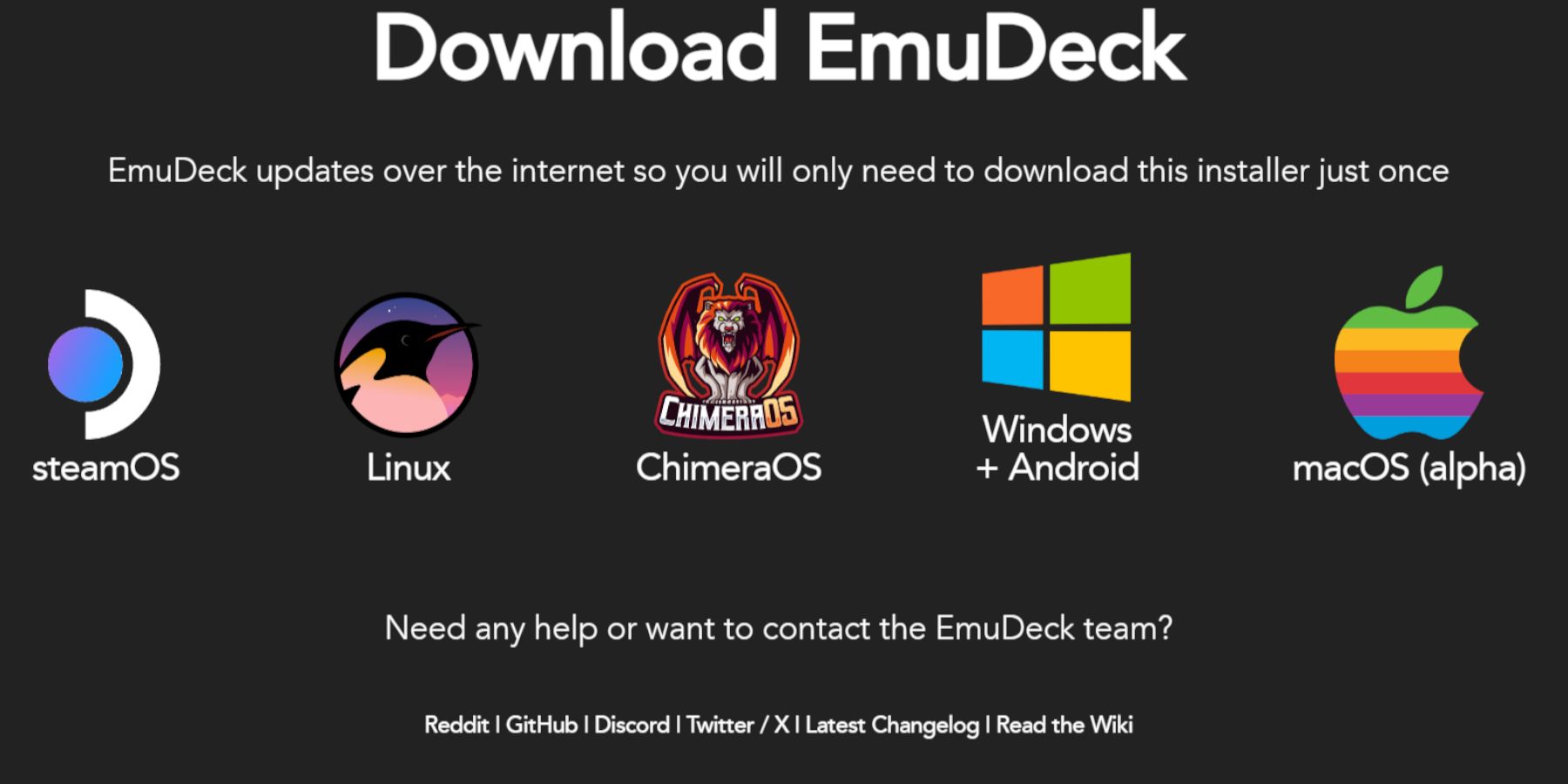 Download and install EmuDeck.
- Switch to Desktop Mode.
- Open a web browser and download EmuDeck.
- Select the Steam OS version and choose Custom Install.
- Select your SD card as the Primary installation location.
- Choose your desired emulators (RetroArch, Emulation Station, Steam ROM Manager recommended).
- Enable Auto Save.
- Complete the installation.
Quick Settings:
In EmuDeck, under Quick Settings:
- Ensure AutoSave is enabled.
- Enable Controller Layout Match.
- Set Sega Classic AR to 4:3.
- Enable LCD Handhelds.
Transferring Game Gear ROMs and Using Steam ROM Manager
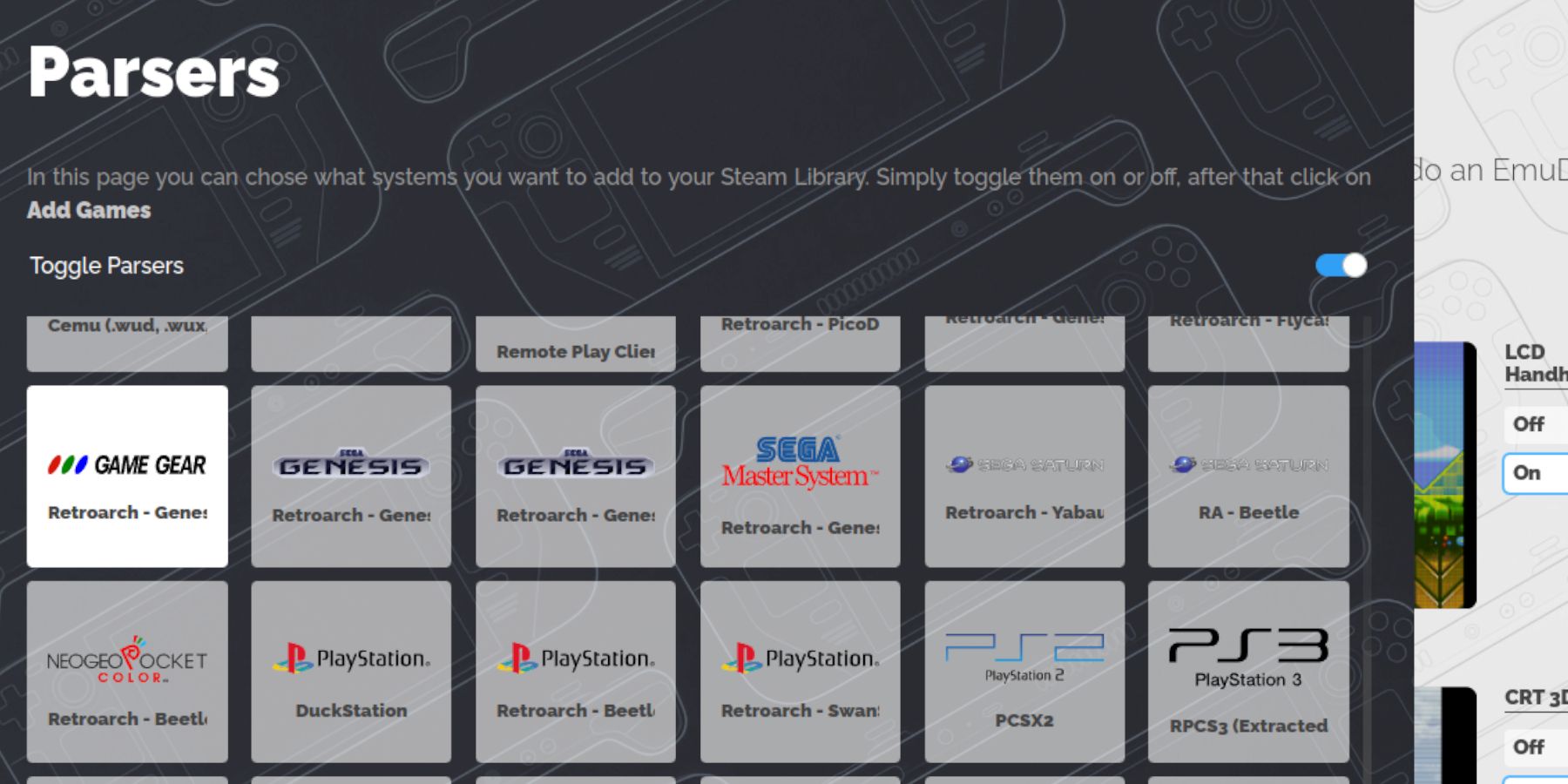 Transfer your ROMs and integrate them into your Steam library.
Transferring ROMs:
- Open Dolphin File Manager in Desktop Mode.
- Navigate to your SD card (Primary) -> Emulation -> ROMs -> gamegear.
- Transfer your ROMs to this folder.
Steam ROM Manager:
- Open EmuDeck and launch Steam ROM Manager.
- Close the Steam Client when prompted.
- Select the Game Gear icon.
- Add and parse your games.
- Review artwork and save to Steam.
Resolving Missing Artwork in EmuDeck
 Fix missing or incorrect artwork.
- Use the "Fix" button in Steam ROM Manager to search for artwork.
- Remove any numbers preceding game titles in ROM filenames.
- Manually upload missing artwork via the "Upload" function in Steam ROM Manager.
Playing Game Gear Games on the Steam Deck
Access and optimize your Game Gear games.
- Switch to Gaming Mode.
- Open your Steam Library.
- Access the Game Gear collection.
- Select and launch your game.
Performance Settings:
- Open the Quick Access Menu (QAM).
- Select Performance.
- Enable per-game profiles.
- Set the Frame Limit to 60 FPS.
Installing Decky Loader on the Steam Deck
 Install Decky Loader for enhanced control.
- Switch to Desktop Mode.
- Download Decky Loader from GitHub.
- Run the installer and choose Recommended Install.
- Restart your Steam Deck in Gaming Mode.
Installing the Power Tools Plugin
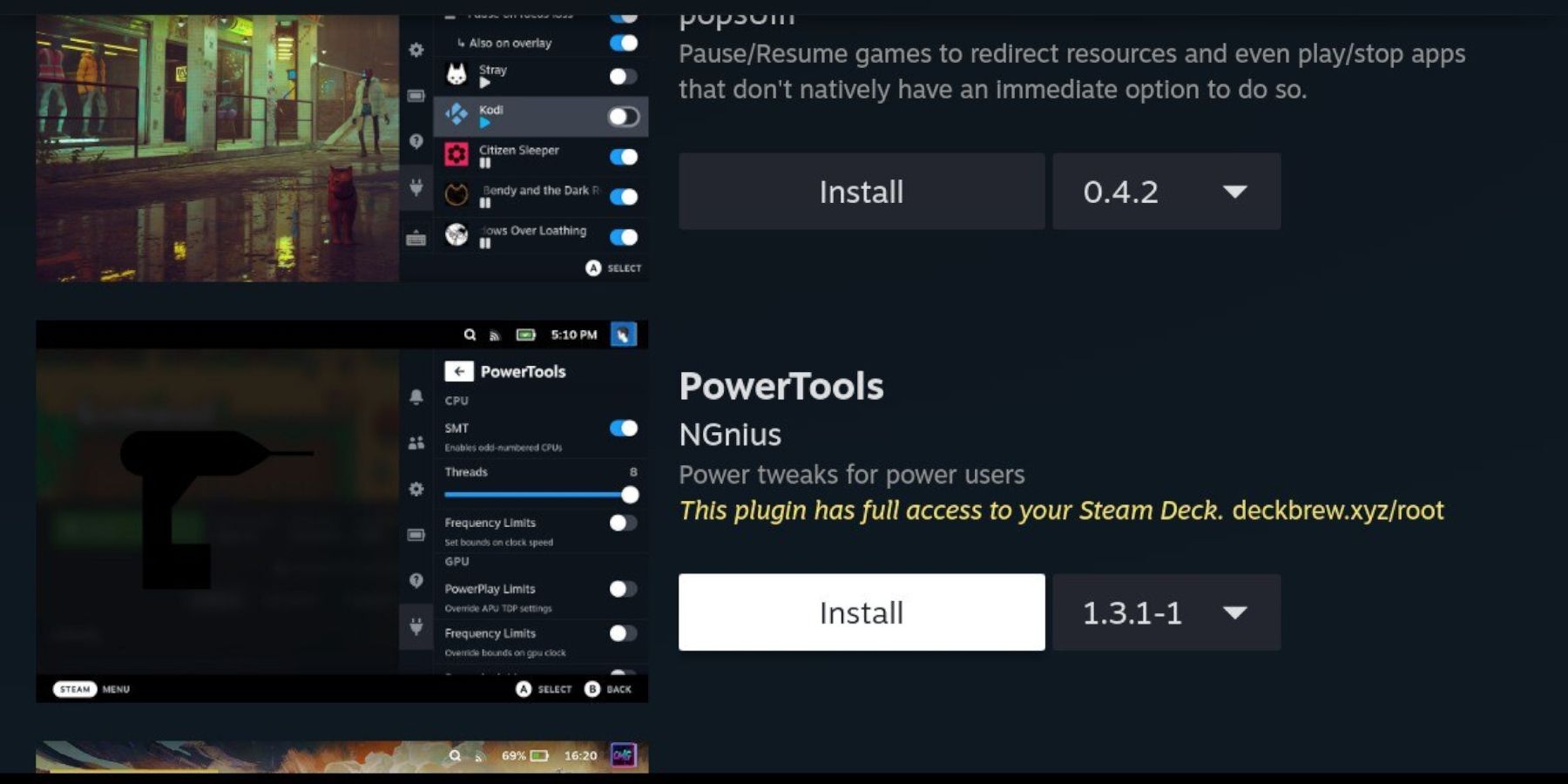 Install and configure Power Tools.
- Open the Decky Loader plugin store in Gaming Mode.
- Install the Power Tools plugin.
- In Power Tools, disable SMTs, set Threads to 4, enable Manual GPU Clock Control, and set GPU Clock Frequency to 1200. Enable Per Game Profile.
Troubleshooting Decky Loader After a Steam Deck Update
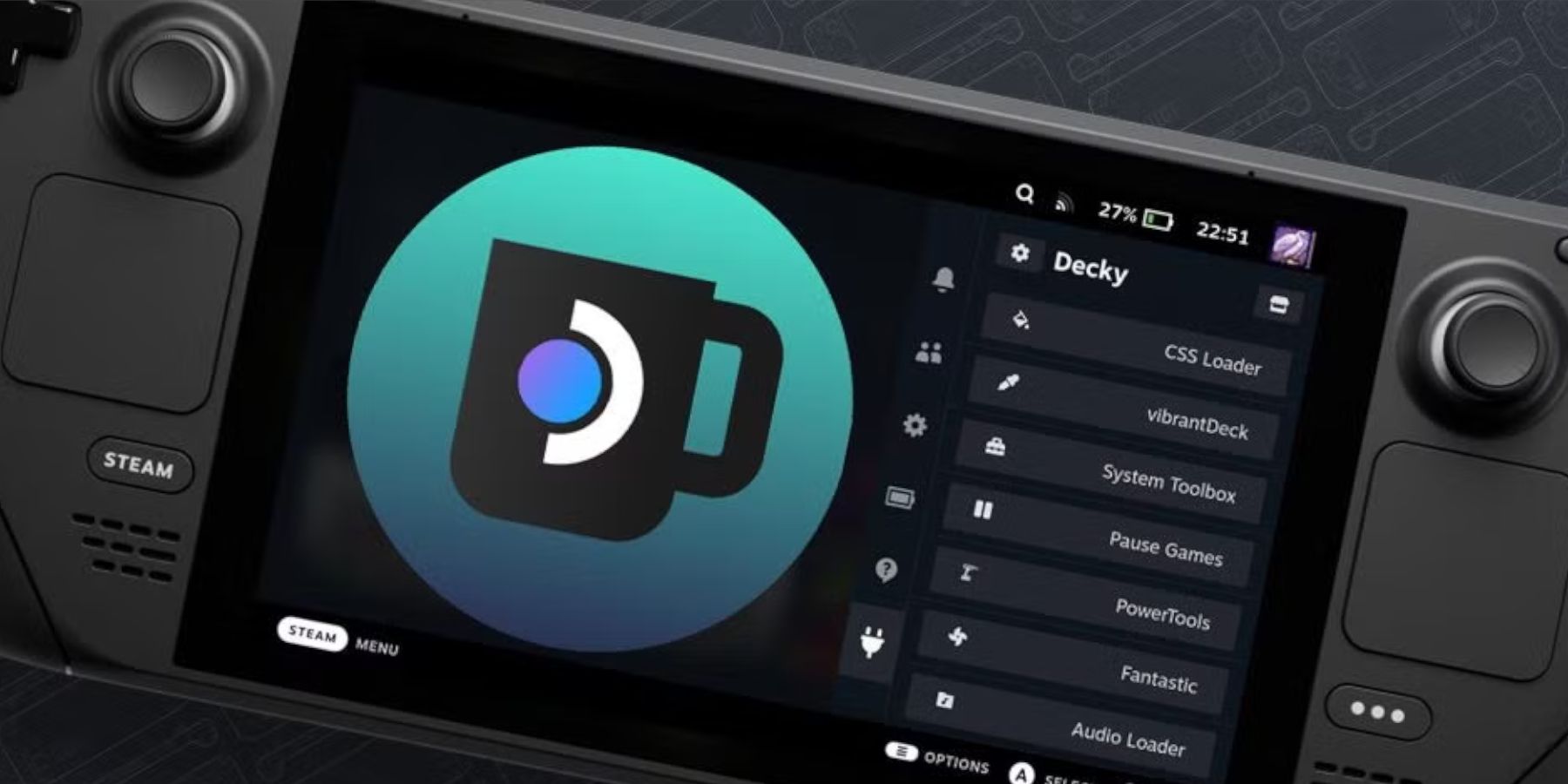 Reinstall Decky Loader after Steam Deck updates.
- Switch to Desktop Mode.
- Download Decky Loader from GitHub.
- Run the installer (using
sudo). - Restart your Steam Deck in Gaming Mode.